

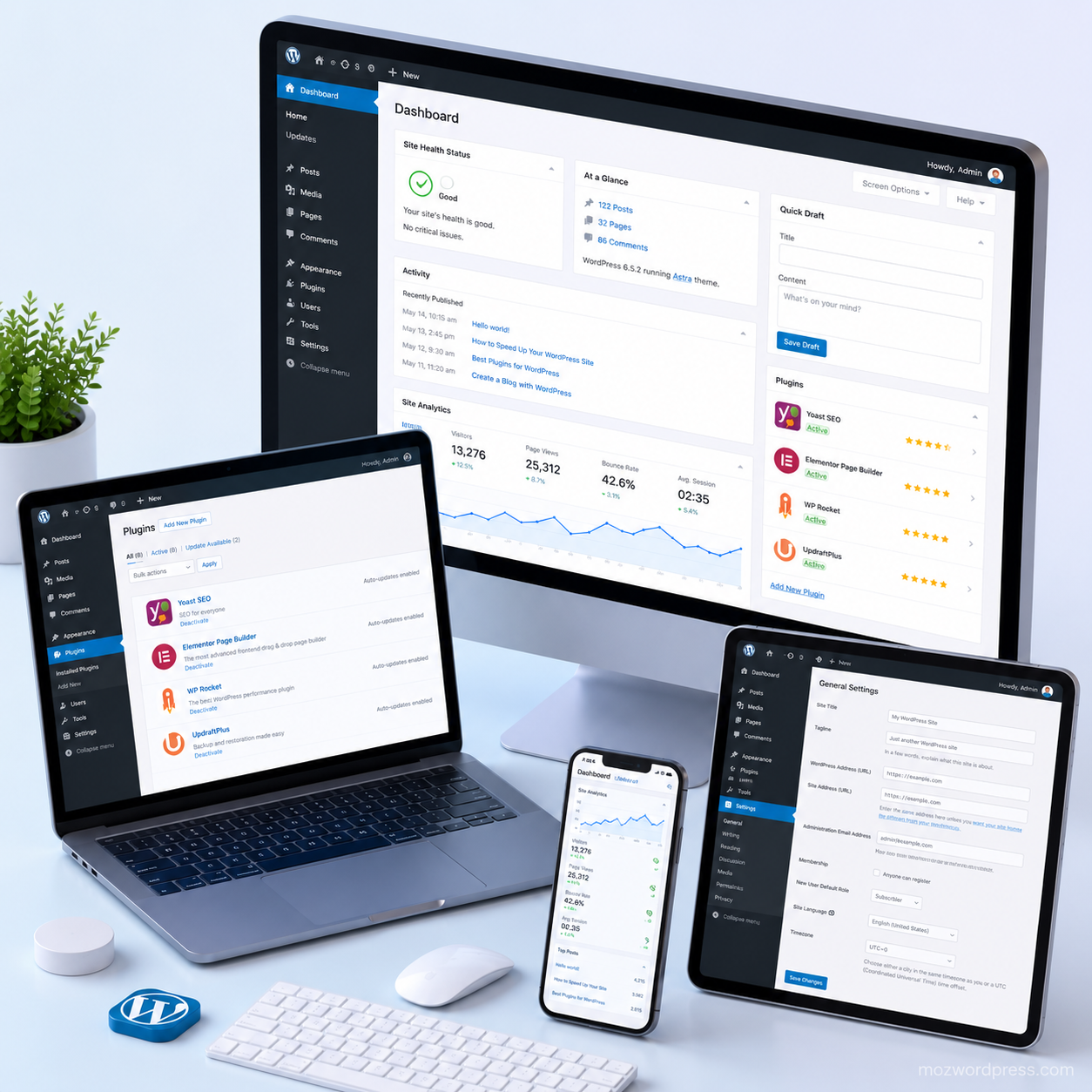
Best WordPress Plugins for Beginners: 10 Essential Tools to Start Right
WordPress can be overwhelming for beginners, but the right plugins simplify every task, from security to SEO and performance. In this guide, we cover the best WordPress plugins for beginners, explaining not just what to use, but why and how, ensuring you avoid site-breaking mistakes while gaining real functionality.
Why Plugins Matter for Beginners
Plugins extend WordPress functionality without writing code. Beginners often face confusion on which plugins are safe, compatible, and effective. The best WordPress plugins for beginners allow you to:
- Secure your site
- Optimize speed and SEO
- Add forms, galleries, and social features
- Track visitors and performance
Choosing wrong can break your site or slow it down, so informed choices matter.
Key Considerations Before Installing Plugins
Before installing any plugin:
- Check Compatibility – Ensure it works with your WordPress version.
- Read Reviews and Ratings – Avoid abandoned or poorly rated plugins.
- Backup Your Site – Always create a backup first (more on this later).
- Limit Plugin Numbers – More isn’t always better; each plugin can affect performance.
Tip: Even beginner-friendly plugins can conflict. Take preventive steps to avoid errors like the White Screen of Death.
Essential Plugins Every Beginner Should Install
1. Security Plugins
Security is non-negotiable. Beginners are particularly vulnerable to hacks.
Recommended Plugin: Wordfence Security
Why: Provides firewall protection, malware scanning, and login security.
How to Use: Install, activate, run initial scan, configure firewall rules.
Caution: Don’t change advanced firewall settings without reading documentation; misconfigurations can lock you out.
2. Backup Plugins
Always have a recovery plan.
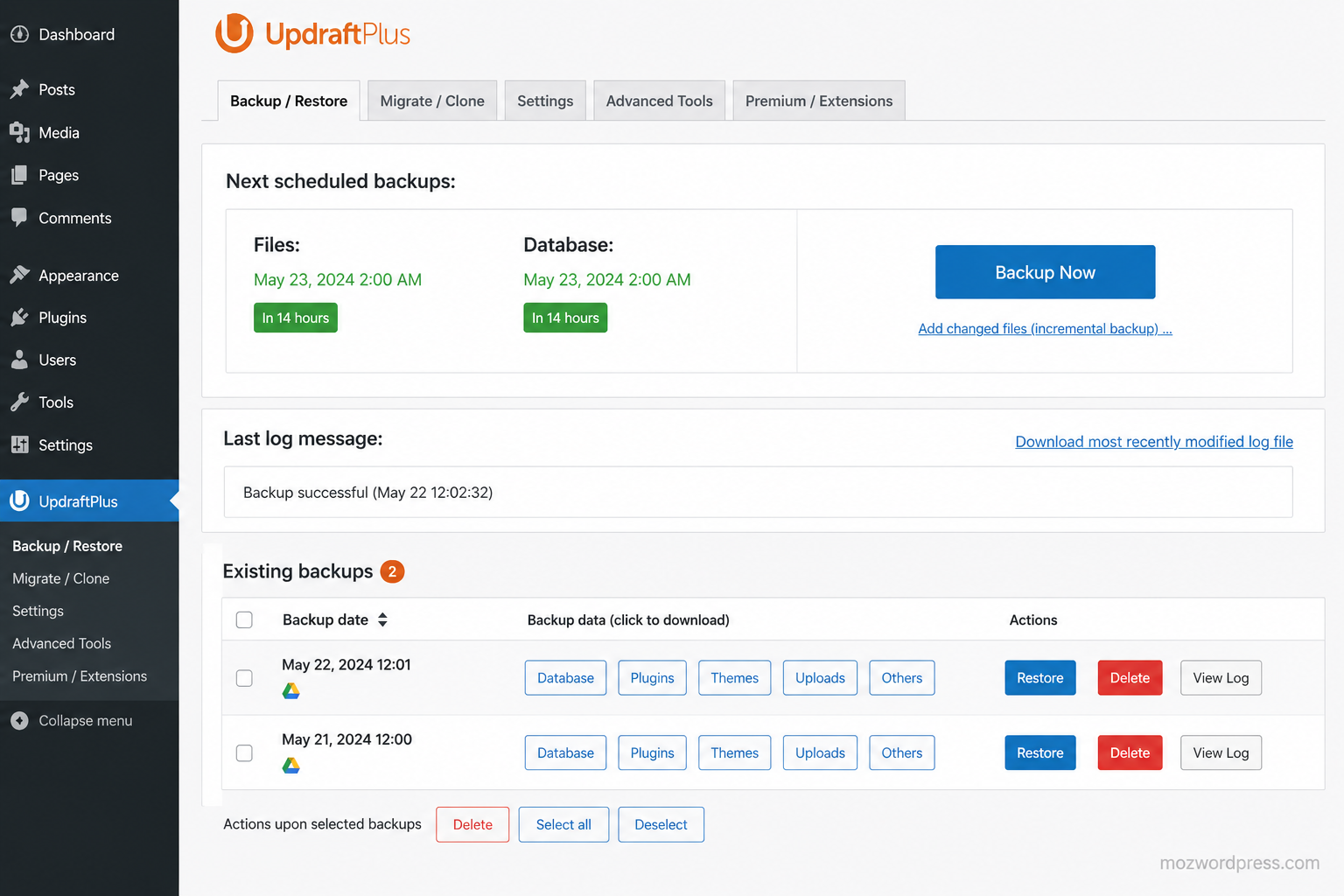
Recommended Plugin: UpdraftPlus
When to Use: Before major updates, plugin installations, or troubleshooting errors.
Why It Works: Creates manual or automatic backups of your database and files.
Practical Tip: Store backups offsite (Google Drive, Dropbox).
3. SEO Plugins
SEO ensures your content is discoverable.
Recommended Plugin: Rank Math
Why: Beginner-friendly, lightweight, integrates well with WordPress editor.
Tips: Follow setup wizard and focus on one primary keyword per post.
4. Caching and Performance Plugins
Speed matters for UX and SEO.
Recommended Plugin: W3 Total Cache
Why: Reduces server load, improves page load times, simple for beginners.
Caution: Enable one caching option at a time and test site after changes.
5. Contact Form Plugins
Forms allow user interaction without custom coding.
Recommended Plugin: WPForms
Why: Drag-and-drop builder, beginner-friendly, secure against spam.
Tip: Always test form submissions and notifications before going live.
6. Page Builder Plugins
Design custom layouts without touching code.
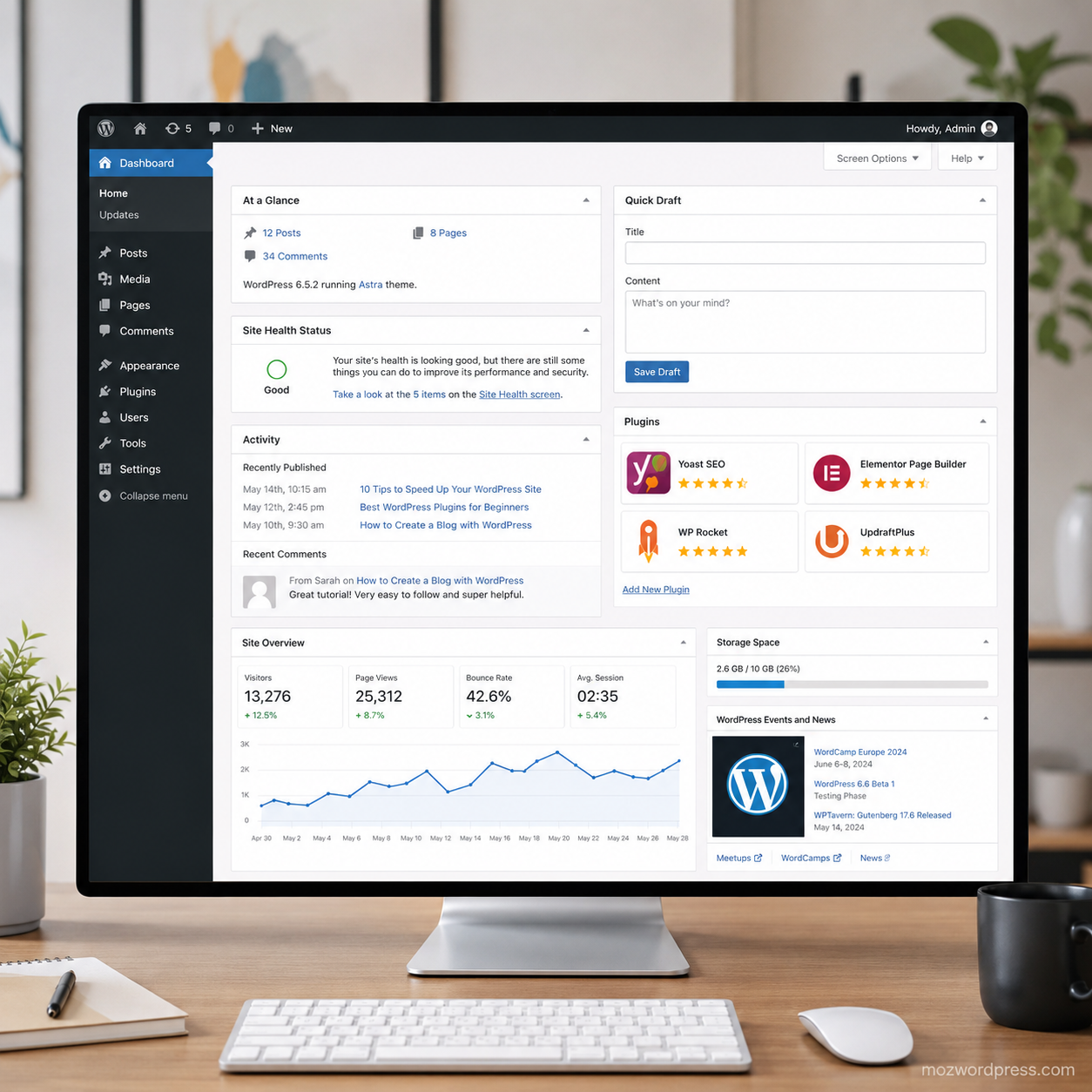
Recommended Plugin: Elementor
Why: Visual builder, responsive controls, easy templates.
Caution: Avoid too many extra add-ons; they can bloat the site.
7. Analytics Plugins
Understand your visitors.
Recommended Plugin: MonsterInsights
Why: Integrates Google Analytics directly into WordPress dashboard.
Tip: Track basic metrics first, avoid overwhelming beginners with advanced features.
8. Image Optimization Plugins
Optimized images speed up your site and save bandwidth.
Recommended Plugin: Smush
Why: Compresses images automatically without quality loss.
9. Spam Protection Plugins
Prevent spam comments and form submissions.
Recommended Plugin: Akismet
Why: Automatically filters spam, trusted by millions of sites.
10. Customization and Widgets Plugins
Extend design and functionality for your site.
Recommended Plugin: Custom Sidebars – Dynamic Widget Areas
Why: Lets beginners create widgetized areas without editing code.
Common Errors and Troubleshooting
Even with beginner-friendly plugins, errors can happen. The most common is the White Screen of Death (WSOD).
The White Screen of Death
What it is: A blank page with no error message.
Why it happens: Often due to plugin conflicts, theme issues, or PHP memory limits.
Steps to Fix WSOD:
- Check Your Backup: Ensure you have a recent backup before any troubleshooting.
- Deactivate Plugins:
Via Dashboard if accessible
Via FTP or File Manager (rename plugin folder)
- Switch to a Default Theme: Activate Twenty Twenty-Three or other standard theme.
- Enable Debug Mode: Add
define('WP_DEBUG', true);inwp-config.phpto reveal errors. -
Increase PHP Memory: Edit
wp-config.php:define('WP_MEMORY_LIMIT', '256M'); - Check Server Error Logs: Your hosting panel usually provides logs.
If Nothing Works: Restore backup or consult a professional developer.
Image placement: After WSOD troubleshooting section
Image description: FTP client showing plugin folder renaming to deactivate plugins
ALT text: Best WordPress plugins for beginners troubleshooting WSOD
Name: deactivate-plugins-ftp
Watermark instruction: Add only a subtle “mozwordpress.com” watermark
Maintaining a Safe WordPress Environment
To prevent issues:
- Limit installed plugins to essentials
- Keep WordPress, themes, and plugins updated
- Regularly backup and monitor site
- Use security plugins and strong passwords
Internal links suggestions:
- How to Create a WordPress Backup That Actually Works
- Step-by-Step Guide to Enable Debug Mode in WordPress
Conclusion: Next Steps for Beginners
Mastering WordPress starts with safe, effective plugin use. The best WordPress plugins for beginners covered here will help secure, optimize, and customize your site without coding.
Next steps:
- Install the essential plugins carefully.
- Create a backup before every significant change.
- Monitor site performance and security regularly.
- Gradually explore advanced plugins as your confidence grows.
With these tools and precautions, even beginners can run a stable, professional WordPress site.

