


What is WordPress? 11 Things You Must Know Before Building a Website
If you are trying to understand what is WordPress, you are already on the right path to building a website the smart way. WordPress is the foundation behind millions of websites, blogs, online stores, and business platforms worldwide.
But here is what most beginners miss: WordPress is not just a tool, it is a full ecosystem that can either make your website fast, scalable and profitable… or slow, broken and frustrating if not set up correctly.
This guide breaks everything down in a practical way so you understand not only what is WordPress, but also how it behaves when things go wrong and how to fix them without losing your website.
1. What is WordPress?
The phrase what is WordPress refers to a Content Management System (CMS) used to create and manage websites without needing advanced coding skills.
In simple terms:
WordPress is a software that allows you to build websites using themes, plugins and a visual dashboard instead of writing code from scratch.
It powers blogs, business sites, e-commerce stores and even large corporate platforms.
👉 Official source: https://wordpress.org
2. How WordPress Works Behind the Scenes
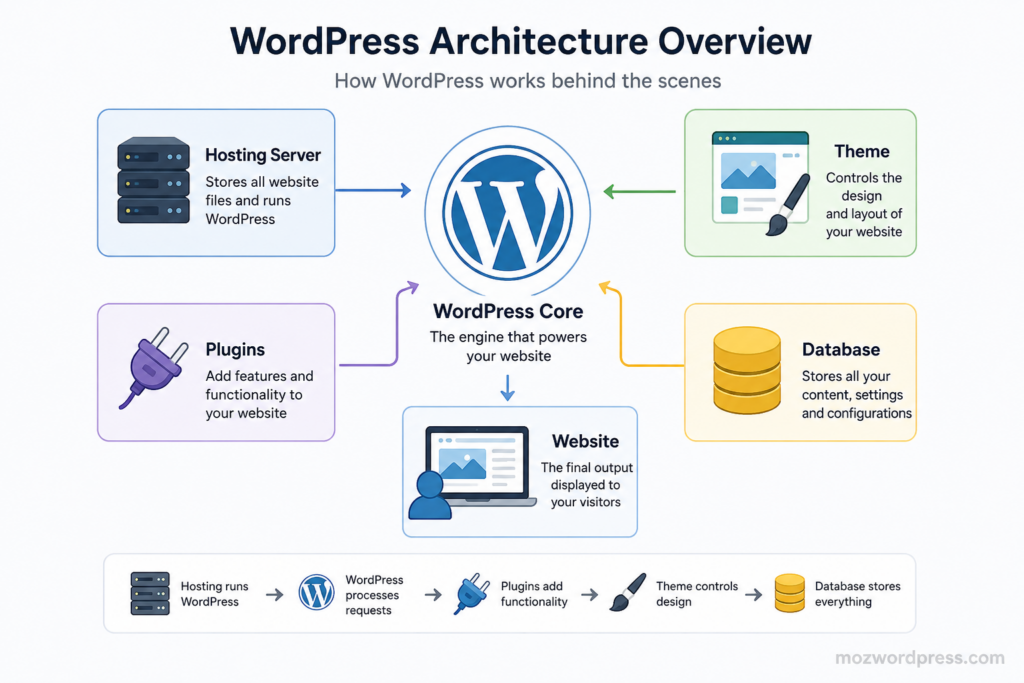
To understand what is WordPress, you need to understand how it works:
- You install WordPress on a hosting server
- You choose a theme (design structure)
- You install plugins (features and functionality)
- You create pages and content
- The system renders everything into a website
Think of WordPress like a construction system:
- Hosting = land
- WordPress = construction engine
- Theme = building design
- Plugins = electricity, water, features
3. Why WordPress Is So Popular
Understanding what is WordPress also means understanding why it dominates the internet.
Key reasons:
- Free and open source
- Easy for beginners
- Highly customizable
- SEO friendly structure
- Thousands of plugins and themes
- Large global community
WordPress is not just a website builder. It is a scalable platform used by developers and businesses worldwide.
4. WordPress.com vs WordPress.org
Many beginners confuse these two when learning what is WordPress.
WordPress.com
- Hosted platform
- Limited control
- Easier setup
- Less flexibility
WordPress.org
- Self hosted
- Full control
- Requires hosting
- Unlimited customization
If you want serious control over your website, WordPress.org is the real solution.
5. Common Beginner Mistakes
When people first learn what is WordPress, they often make avoidable mistakes:
- Installing too many plugins
- Using heavy themes
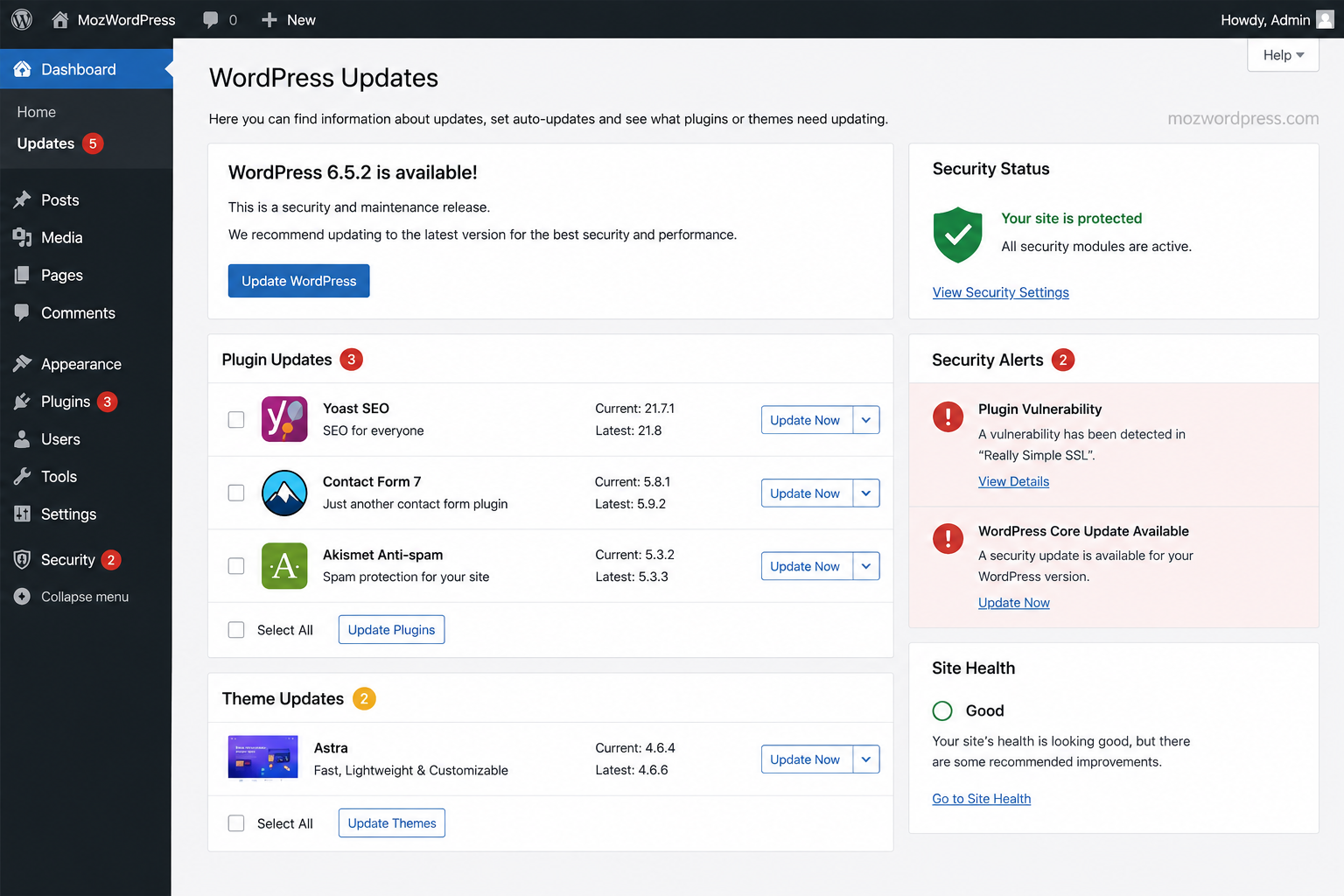
- Ignoring updates
- Not configuring backups
- Skipping security setup
These mistakes often lead to slow websites or broken layouts.
6. When WordPress Breaks: White Screen of Death
Now we move into something critical that every WordPress user must understand.
The White Screen of Death (WSOD) is one of the most common WordPress failures.
It happens when your website shows a blank white screen instead of loading.
Why this happens:
- Plugin conflict
- Theme error
- PHP memory limit reached
- Corrupted files
- Update failure
Even if you fully understand what is WordPress, this error can still happen.
7. How to Fix WordPress Errors Safely
If your site breaks, follow these steps carefully.
Step 1: Check backups first
Before making changes, always confirm you have a backup.
Step 2: Disable plugins
You can disable plugins via:
- WordPress dashboard
- FTP
- File Manager
This helps identify conflicts.
Step 3: Switch theme
Temporarily switch to a default theme like Twenty Twenty-Four.
Step 4: Activate debug mode
Enable debugging in wp-config.php:
define('WP_DEBUG', true);Step 5: Increase PHP memory
Low memory can break WordPress.
Add:
define('WP_MEMORY_LIMIT', '256M');Step 6: Check error logs
Your hosting panel often provides server logs to identify issues.
Step 7: Restore backup if needed
If nothing works, restore the last stable version.
External Resource:
8. How to Prevent Future Issues
Understanding what is WordPress also means knowing how to keep it stable.
Best practices:
- Use trusted plugins only
- Keep WordPress updated
- Avoid heavy themes
- Use caching plugins
- Schedule backups
- Limit plugin usage
9. When to Ask for Professional Help
Sometimes, even after understanding what is WordPress, issues become too complex.
You should consider expert help when:
- Website stays down after multiple fixes
- Database errors appear
- Hosting issues persist
- Malware infection occurs
- Critical business site is affected
There is no shame in escalation. Professional support prevents data loss.
10. Final Thoughts
Now you understand clearly what is WordPress and how it works beyond the surface.
It is not just a tool for building websites. It is a complete ecosystem that requires proper setup, maintenance and awareness of common issues.
If you set it up correctly from the beginning, WordPress becomes one of the most powerful platforms to build and grow online projects.
Internal Link Suggestions
- WordPress Installation Guide for Beginners
- How to Fix Slow WordPress Website (Performance Guide)

