


How WordPress works behind the scenes: 12 essential processes every site owner should know
Most people use WordPress every day without ever understanding what is actually happening underneath. You click “publish”, install a plugin, or change a theme and everything just works… until it doesn’t.
But once you understand how WordPress works behind the scenes, you stop treating it like a black box and start controlling your site with confidence. That difference is what separates someone who fixes issues in minutes from someone who panics when the dashboard goes blank.
This guide breaks down the real system: database, PHP execution, plugins, themes, caching, and the critical failure points like the White Screen of Death.
How WordPress works behind the scenes (core architecture)
At its core, WordPress is built on three main layers:
- PHP (server-side logic)
- MySQL database (content storage)
- HTML/CSS/JavaScript (front-end output)
When someone visits your site, WordPress doesn’t just “open a page”. It builds it in real time by combining data from the database, instructions from PHP files, and styling from your theme.
This dynamic structure is powerful, but it also means one broken plugin or theme can interrupt the entire system.
2. Request lifecycle: what happens when a page loads
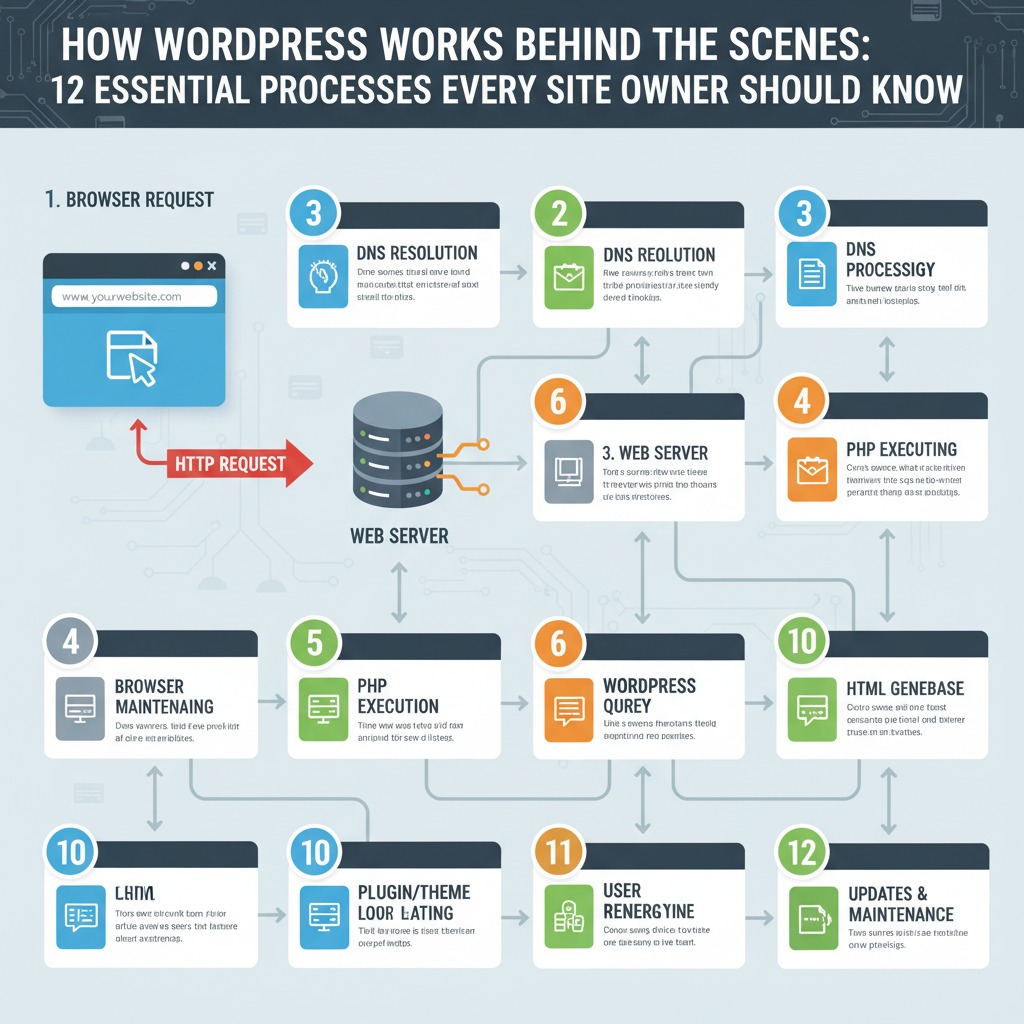
Every time a visitor opens your site:
- The browser sends a request to your server
- WordPress loads core files
- Plugins are initialized
- Theme is loaded
- Database query retrieves content
- Final HTML is generated and sent back
If anything fails in this chain, the page may break or go blank.
This is where understanding how WordPress works behind the scenes becomes critical.
3. Database role in WordPress
Your database stores everything important:
- Posts and pages
- Plugin settings
- User accounts
- Site configuration
Without the database, WordPress has nothing to display.
A slow or corrupted database often leads to errors that look like theme or plugin problems, but are actually deeper system issues.
4. Plugins and themes interaction system
Plugins extend functionality. Themes control appearance.
But here is the hidden truth: plugins can override theme behavior, and themes can break plugin output.
This conflict is one of the most common causes of site failure.
Too many plugins increase:
- Load time
- Conflict risk
- Memory usage
5. White Screen of Death explained
The White Screen of Death (WSOD) is when your site or admin panel loads a blank white page with no error message.
It is one of the most stressful WordPress issues because it hides the problem completely.
In most cases, it is caused by:
- Fatal PHP errors
- Memory exhaustion
- Plugin conflict
- Broken theme files
When WSOD happens, WordPress stops executing before it can show an error.
6. Common causes of WordPress failures
Understanding how WordPress works behind the scenes helps identify failure points:
- Plugin updates breaking compatibility
- Theme code errors
- PHP version mismatch
- Exhausted server memory
- Corrupted core files
7. What to check before fixing anything
Before making changes:
- Confirm if backend or frontend is affected
- Check if recent updates were installed
- Identify last working state
- Access hosting error logs if possible
This prevents unnecessary damage during troubleshooting.
8. How to disable plugins safely
When WordPress breaks, plugins are usually the first suspects.
Option 1: From dashboard
If accessible:
- Go to Plugins
- Deactivate all
- Reactivate one by one
Option 2: via File Manager or FTP
If dashboard is broken:
- Go to
wp-content - Rename
pluginsfolder toplugins-disabled
WordPress will automatically deactivate all plugins.
9. Switching themes without breaking the site
A corrupted theme can trigger WSOD.
To test safely:
- Switch to a default theme like Twenty Twenty-Four
- If dashboard works, issue is theme-related
Never delete your active theme before testing.
10. Debug mode and error logs
WordPress has a hidden diagnostic system.
Enable it in wp-config.php:
define('WP_DEBUG', true);
define('WP_DEBUG_LOG', true);
This creates a log file showing exact errors.
Official reference:
Logs usually reveal:
- Plugin file causing crash
- Missing function errors
- Memory issues
11. PHP memory limits and performance issues
When memory is too low, WordPress stops working.
Common fix:
- Increase
memory_limitin hosting panel orwp-config.php
Why it works:
WordPress loads multiple plugins, themes, and database queries simultaneously.
If memory is exhausted, execution stops instantly.
12. Backup and restoration strategy
Before any fix, always confirm a backup exists.
A proper backup includes:
- Database
- wp-content folder
- Theme files
If something goes wrong:
- Restore from hosting backup
- Or use backup plugin restore option
Never attempt major fixes without rollback access.
13. Prevention and maintenance habits
Once you understand how WordPress works behind the scenes, maintenance becomes simple:
- Keep plugins minimal
- Update regularly
- Avoid untested themes
- Monitor error logs weekly
- Use staging before updates
Think of WordPress like a live system, not static software.
14. When to call a professional
Some situations require experience:
- Repeated WSOD after fixes
- Database corruption
- Server-level PHP crashes
- Malware infection
If multiple layers are affected, manual fixes can worsen the issue.

